
Perform Replace Ink in Head
Replace Ink in Head consumes a great amount of ink.
Frequent Replace Ink in Head can rapidly consume ink, so perform it only when necessary.
 Important
-
Before performing Replace Ink in Head, check the remaining ink level of all colors. If the remaining ink level is below the single dot (A), refill the ink tank of corresponding color.
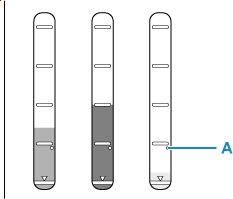
-
When Replace Ink in Head, check the free space of the maintenance cartridge. Replace Ink in Head consumes a lot of ink, and the consumed ink is discharged to the maintenance cartridge. If the free space is low, replace it with a new maintenance cartridge. If the available capacity of the maintenance cartridge is low, a message is displayed and Replace Ink in Head cannot be performed.
Perform Replace Ink in Head following the procedure below.
-
Check that printer is turned on.
-
Press Setup button once or twice.
The Setup menu screen appears.
-
Use the

 button to select Maintenance and then press OK button.
 -
Use the
button to select Replace Ink in Head and then press OK button. -
Use the
button to select All colors, Color or BK and then press OK button. -
Check displayed message and press OK button.
-
Check displayed message and use the
button to select Yes and then press OK button. -
Check displayed message and use the
button to select Yes and then press OK button.Replace Ink in Head starts.
 Note
Note
- Do not perform any operations while Replace Ink in Head is in progress.
